

Implementing rewards
1 - What is the reward feature?
Section titled “1 - What is the reward feature?”The rewards feature enables you to reward with a prize the subscribers who successfully share gift links to their friend.
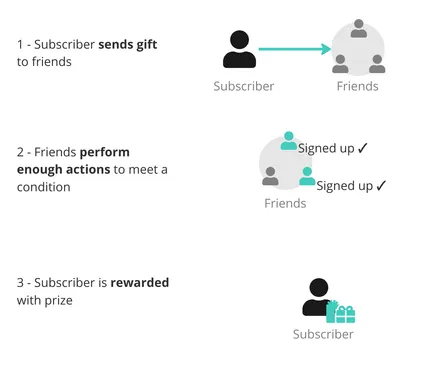
2 - Configuring rewards from your dashboard
Section titled “2 - Configuring rewards from your dashboard”To get started, head to the Rewards section of your dashboard and click on Edit Settings.
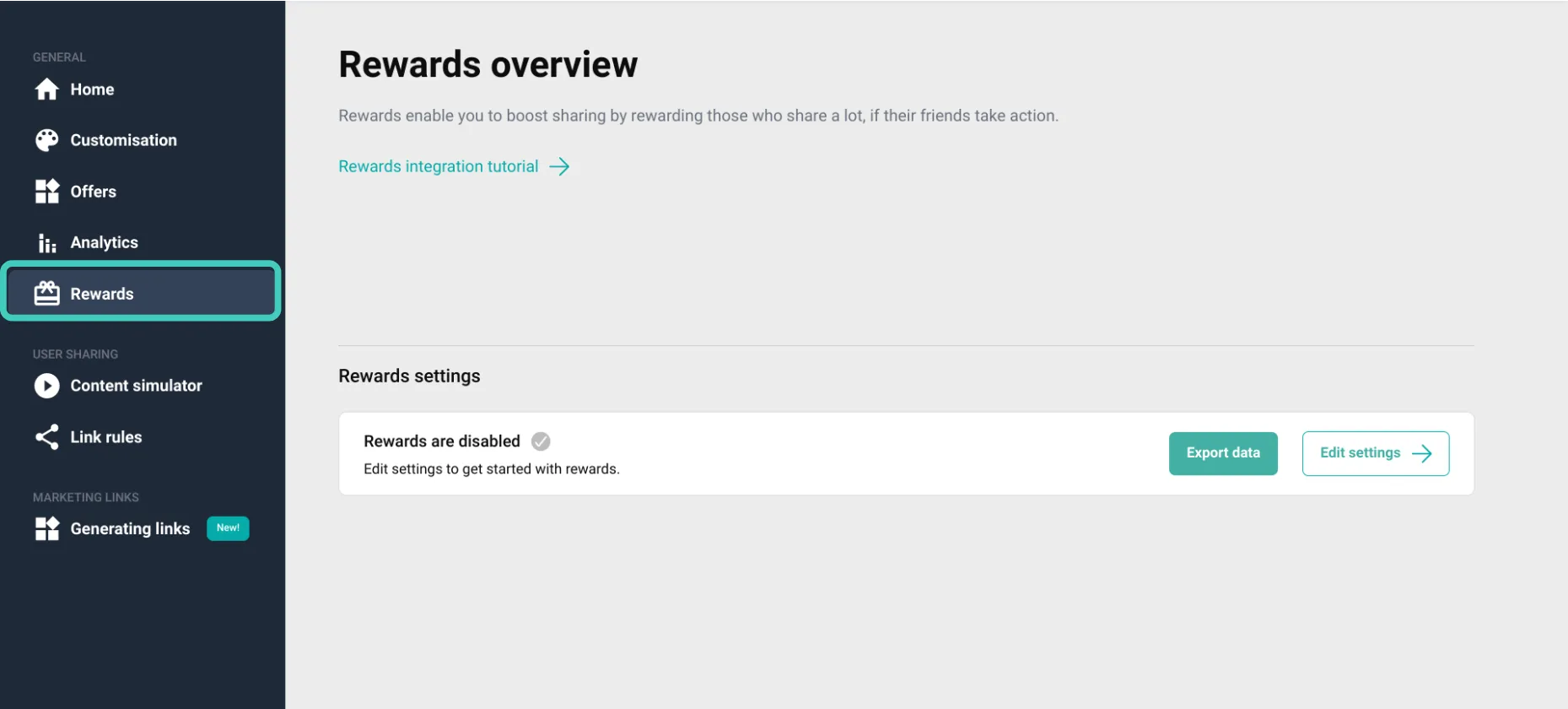
2.A - Setting a condition for rewarding subscriber
Section titled “2.A - Setting a condition for rewarding subscriber”In this section, you’re setting the condition that, when met, triggers the sending of the reward prize to the subscriber.
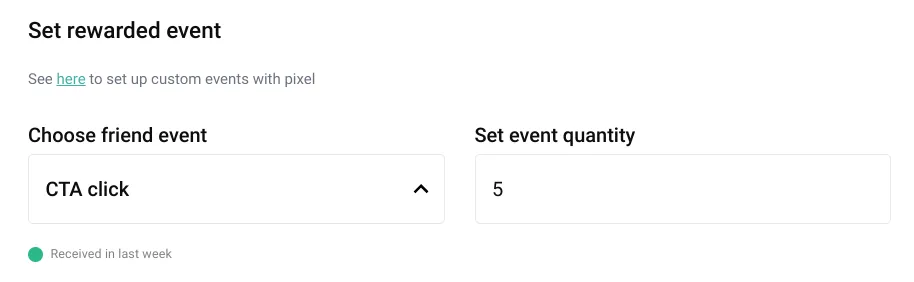
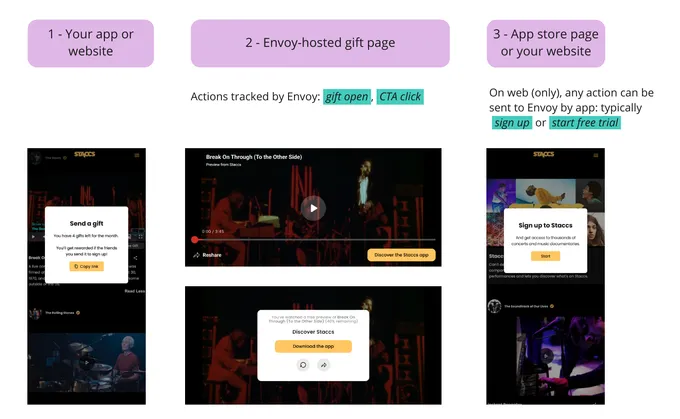
There are two types of ‘friend events’ you can choose from:
- Actions tracked by Envoy (step 2 in illustration) on our landing page:
gift open,CTA click - Actions taking place on your website, send to us through our Pixel Event API (step 3) WEB-ONLY
2.B - Choosing the prize type
Section titled “2.B - Choosing the prize type”In this section, you’ll set the prize the subscriber receives if the above condition is met.
Rewarding the subscriber with a custom prize
Section titled “Rewarding the subscriber with a custom prize”Select this option to reward the subscriber with a reward of your choice, like a 50% discount off of the next month or a T-Shirt to thank him for promoting your app.
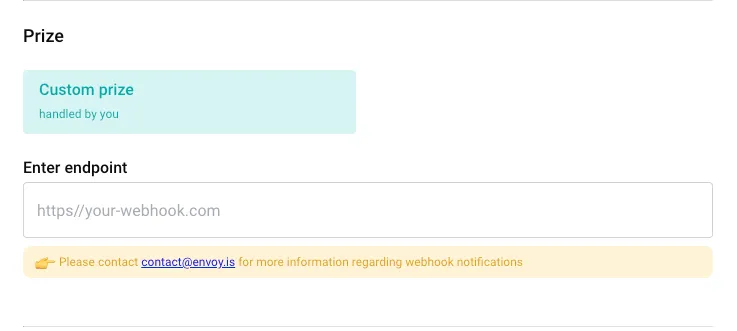
Limiting the number of rewards that an user can receive
Section titled “Limiting the number of rewards that an user can receive”In the rewards configuration page you can set the maximum number of rewards an user can unlock in a month.
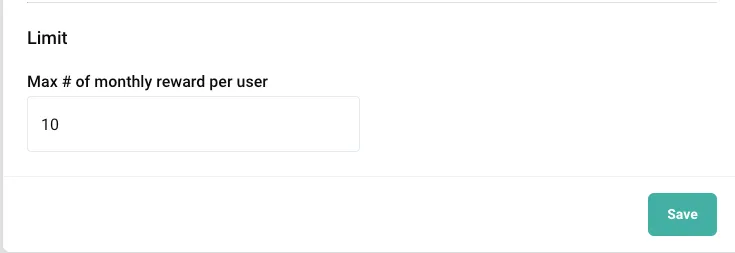
For example:
User with id ‘user-1’ has received 10 rewards this month. This means it can’t receive any more no matter if it mets the criteria for another reward to be unlocked.
3 - Delivering the prize to the subscriber
Section titled “3 - Delivering the prize to the subscriber”Any time an user unlocks a reward we internally mark it. For checking wether the user has unlocked a reward or not you can:
- Use our SDKs for iOS and Android(they have pre-build methods for checking rewards)
- Use our API https://openapi.envoy.is/#tag/Rewards
https://openapi.envoy.is/#tag/Rewards/operation/get_user_rewards_user_rewards__user_id__get - This API call will returntrueorfalseonrewardAvailableif the user has unlocked a reward or not.
https://openapi.envoy.is/#tag/Rewards/operation/claim_user_reward_user_rewards_post - This API call will claim rewards for an user. It will return the number of rewards that were claimed.