

Partner checklists (integration, flow, launch)
Goal of this document is to list each item we need to check to ensure that partner has fully and successfully integrated our basic flow.
1 - Questions before the integration
Section titled “1 - Questions before the integration”Questions
Section titled “Questions”- “Are you implementing sharing or gifting?”
- “Do you plan on showing this feature to all users or only Premium ones?”
- “Where are you planning on having the gift button?”
- “Could you add a second location to start journey from?“
- “Any design system components you can use for the ‘feature awareness’ tooltip?“ (goal is to remind partner this is part of integration)
- “Do you want to send full content or restrict user to a portion of the video?” If latter → use the
timeLimitfield - Make sure to use the native share modal Mobile only
⚠️ Heads up
Section titled “⚠️ Heads up”- When user quota has ran out a, 403 error is returned. Make sure this doesn’t break the modal journey. There are two ways to handle this: either tell user their quota has expired in the modal, or don’t show the gift button (or grey it out) if user has no quota left, which you can check with the
user-quota/{user-id}function. - Whastsapp doesn’t show images larger than 200kb in previews. Make sure image sent in
linkPrewiewConfis smaller than that.
| Method | Description | Icon | Modal copy | Link rules params |
|---|---|---|---|---|
| Sharing | No limits on content being shared |  |
Montly quota per user field has to be set quite high (>50). |
|
| Gifting | By putting a limit to the content being sent out: • You convey scarcity: your content is rared, therefore has value • You keep control on what gets moved outside the paywall |
 |
You have 4 remaining gifts for the month. |
Montly quota per user has to be set lower, usually around 5 - 10. |
Set meeting
Section titled “Set meeting”Review meeting is set one week after integration start, to either unblock or review feature
2. Checking the flow
Section titled “2. Checking the flow”Attendees: devs and designer
Goal of the meeting is to test end user journey and double-check some things pre-launch.
User flow
Section titled “User flow”-
‘Feature awareness’ tooltip is in place. Non essential
-
Gift button is visible.
-
Bonus if there’s an icon (usually gift icon) and the copy ‘Free gift’.
-
Bonus if it exists in several places in the app. (i.e. on global ’All videos’ view and on each individual video page)
-
Modal indicates # of gifts left. (If they ask how, it’s the
userRemainingQuotafield returned by thecreate-linkfunction) -
Link metadata check: title, description and image
-
Link-out urls check: makes sense for each device type
-
Context message check: non sales-y and not a disclaimer, enthusiastic, emojis help
- The
extrafield of the API is used to pass on anonymous user / campaign properties. Exampleextra: {'user_type': 'premium', 'campaign': 'black_friday' }. “This will show up in your analytics“ Non essential - The image in
linkPrewiewConfis smaller than 200kb - Case where user has ran out of quota is handled (see above for ways to do that.)
Tracking down the funnel
Section titled “Tracking down the funnel”- Pixel-event is set up when user converts (tutorial). “This will show up in your analytics“ - Web only
- Apple App Store and Google Play store tracking is in place, directly or via ‘magic’ MMP link - Mobile only
3. Preparing the feature launch
Section titled “3. Preparing the feature launch”Attendees: optionally a person on tech side, mostly marketing people
Goal: review the strategy so that feature launch is accompanied by a big marketing push to increase feature awareness.
1 - Educate the user
Section titled “1 - Educate the user”-
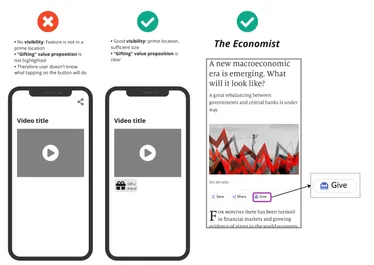
Button Design. Complement the gift/share button with “give a gift” / “Gift” / “Free gift” / “Gift a friend”/ “Share for free”/ “Share a gift”.. to give the end-user more context
-
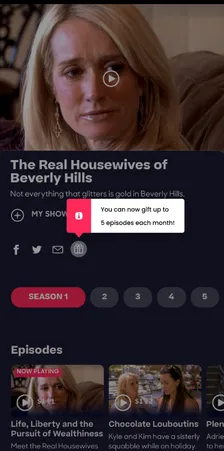
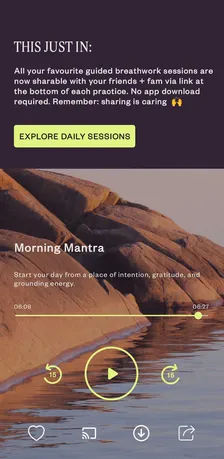
In app tutorials. The first time that the user see the feature is your occasion to give a clear explanation and avoid misunderstanding. If you’re limiting the number of gifts per month, you should already inform the user about their monthly quota of gifts.
 |
 |
|---|
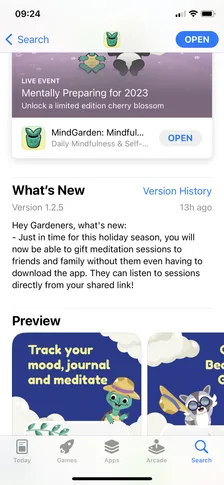
- Apps store preview page. List the feature in your app-store description & “What’s new section” when you launch the update. In addition, you can insert a screenshot of the app highlighting the feature as one of the preview images in the App store.
2 - Engage the user
Section titled “2 - Engage the user”- In app notifications. The goal here is to push the user to engage with the feature by sending him a notification. Based on when you send the notification (before the user opens the content, during consumption, after or while he is scrolling around in the home), the message should be adapted. A classic post-content consumption message is “Hey, did you liked this? Let your friends know and give them them a taste with a free gift!”. If the goal is to push a trending piece of content you can hit users with a broad message like “This is trending! Gift it to your loved ones for free!”
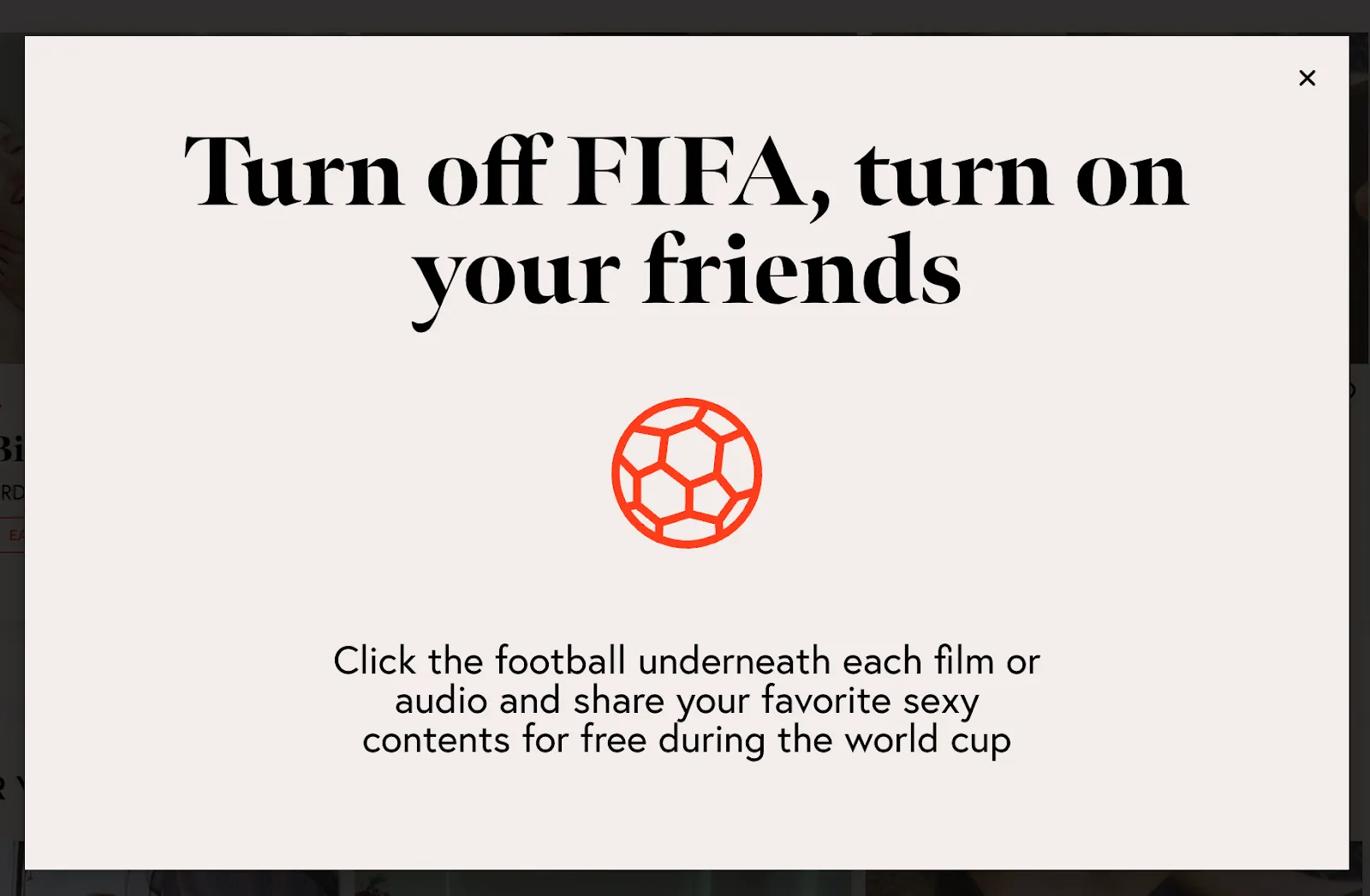
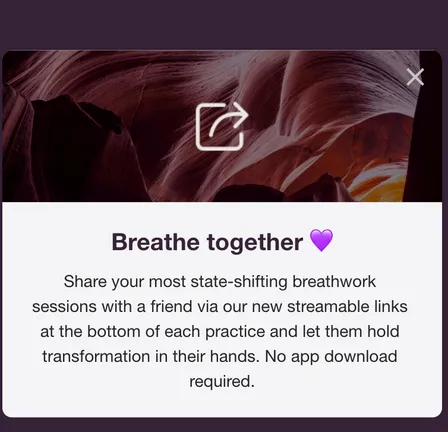
- Email campaign. Reaching your user base with an email announcing the new feature is a good occasion to: 1) Push existing users to engage with the feature 2) Re-activate dormant users 3) Re-engage with churned users 4) Test our “marketing link” feature to give them a taste of what it feels like to have frictionless access to premium content when a gift is shared.
3 - Gain Visibility
Section titled “3 - Gain Visibility”- Social media posts to announce the new feature and create excitement.
- Use of marketing links to let people of have a taste of the frictionless journey and create traffic with improved conversion in your marketing campaigns
- Stress the feature on all your community channels when there is a specific occasion. For example, “Gift the content that you love for Christmas!” ; “Tell your loved ones that you’re thinking about them for San Valentine with one of our gifts”